.png?width=112&height=112&name=Image%20Hackathon%20%E2%80%93%20Vertical%20(56).png)

Google Sheets can be used as a basic CRM for small businesses and teams. Organizations can sync contact data to Google Sheets using simple import processes or dedicated extensions like . It's free, cloud-based, and provides a straightforward path to scale from spreadsheets to a full CRM.
While Google Sheets won‘t replace a dedicated CRM forever, it’s perfect for businesses just starting to formalize their sales process. The flexibility that makes spreadsheets great for quick lists becomes even more powerful when businesses sync contact data to Google Sheets with proper structure. Below, we'll discuss how to use Google Sheets for contact data and the steps to follow when transitioning from a spreadsheet to a CRM.
Table of Contents
- Why sync customer data to Google Sheets?
- Understanding Google Sheets CRM limitations
- How to sync contact data with Google Sheets
- Google Sheets contact database template
- When to graduate to a dedicated CRM
- FAQs about syncing contact data to Google Sheets
Why sync customer data to Google Sheets?
Businesses sync contact data to Google Sheets for two primary reasons: immediate accessibility and flexible data management. As a free, cloud-based solution that teams already know, Google Sheets is an ideal starting point for organizations managing their first 25-50 customer relationships.
The tool works well for simple contact lists that don't need integration with main customer databases. Teams can create custom structures using columns, rows, and formulas to organize information in ways that match their specific workflow — enabling basic contact management, sales pipeline tracking, and simple reporting.
However, spreadsheets are not the best long-term solution for storing all contact information, particularly as teams grow and scale.
.png)
Free Growth Strategy Template
Outline your corporate growth plan with the help of this detailed template.
- Sales and Revenue Growth
- Expansion into New Regions
- Growth of Customer Base
- And more!
Download Free
All fields are required.
Form not available
You're all set!
Click this link to access this resource at any time.
Understanding Google Sheets CRM Limitations
Every tool has its sweet spot, and Google Sheets is no exception. Google Sheets CRM has limitations in automation, scalability, and data security that become increasingly apparent as contact lists grow beyond 50 active relationships. Understanding these constraints helps organizations maximize spreadsheet effectiveness while planning for future CRM needs.
Google Sheets has scale limitations.
Google Sheets handles up to 10 million cells per spreadsheet, but performance slows noticeably around 50,000 rows. For most small businesses managing fewer than 1,000 contacts, this won't be an issue. But if an organization adds 50+ contacts each week, they’ll feel the strain within months.
Google Sheets misses key CRM features.
Unlike dedicated CRMs, Google Sheets can't automatically:
- Track email opens and clicks
- Log customer interactions from multiple channels
- Send follow-up reminders based on deal stages
- Generate activity reports for each contact
- Prevent duplicate entries across teams
Google Sheets doesn’t have built-in data management.
Without built-in contact objects, maintaining consistent data requires discipline. One person might enter “John Smith” while another types “Smith, John” — suddenly, there are duplicate records. It’s possible to add data validation rules (we'll show you how), but it requires manual setup. Additionally, because anyone can technically access Sheets, there’s limited data security.
Google Sheets has collaboration limitations.
While multiple reps can edit a Google Sheet, its collaborative features can also lead to several challenges:
- Version control issues when multiple people edit simultaneously
- Lack of role-based permissions (everyone has equal access)
- Difficulty assigning specific contacts to specific reps
- Challenge of maintaining a single source of truth
For solo operators or very small teams, these limitations are manageable. However, once multiple team members need simultaneous access to contact data, a with built-in collaboration features becomes essential for maintaining data integrity
How to Sync Contact Data With Google Sheets
If teams are moving away from a spreadsheet-only workflow and want to sync contact data with a Google Sheet, they can follow a basic import-export process. Growing businesses should consider upgrading to a dedicated CRM like HubSpot. offers advanced features, seamless integrations, and unified customer relationship management.
For teams ready to make the transition, that further streamlines contact syncing.
Here’s how to do both options.
Syncing contacts using basic import and export
One way to move customer contact data between apps is with an import and export. Many apps enable this to move data in and out of the app, usually in a CSV format that reps can easily export from Google Sheets with the app's required template.
However, manually importing and exporting CSVs can get really tedious and time-consuming. Human error is also likely to occur, quickly undermining overall data integrity. In addition, CSV imports and exports can't really emulate a real-time sync — teams would just constantly transfer a temporary snapshot of your contacts from one app to another.
Teams are much better off creating a true data sync between their apps that doesn't require manual updates and runs automatically, requiring only the initial sync setup.
Using the HubSpot for Google Sheets? Extension
HubSpot provides a that lets reps import contact data directly from their spreadsheets into HubSpot. This connector also provides access to a HubSpot side panel that lets reps view CRM records in real time while working in Google Sheets.
Here's how to get it set up:
Step 1: Install the Connector
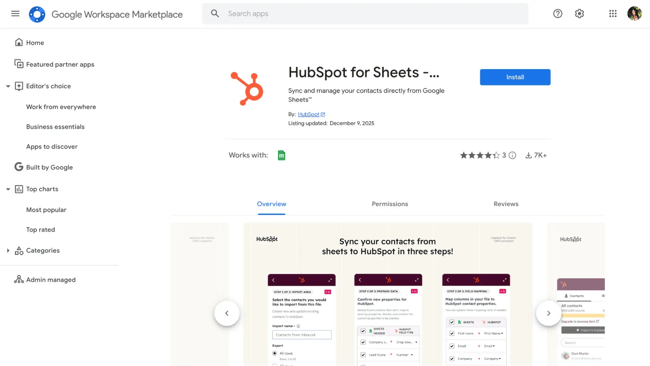
First, install the HubSpot for Sheets CRM Connector from the Google Workspace Marketplace. Navigate to the connector page in the marketplace, then click the Install button in the top-right corner. Users will be prompted to log into their Google account and grant the necessary permissions. Once installed, the add-on will be available across all Google Sheets.
Step 2: Connect to your HubSpot Account
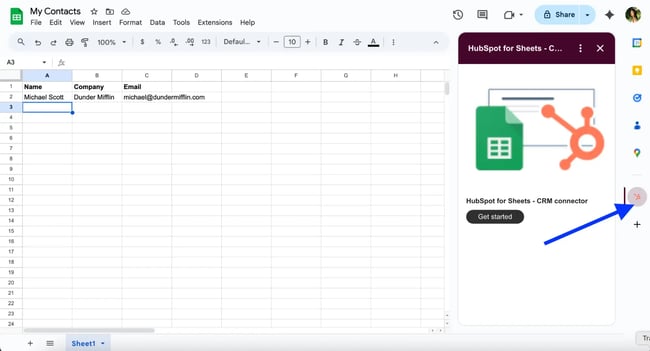
After installation, open any Google Sheet and click Extensions in the toolbar. Select HubSpot for Google Sheets?, then Launch. In the dialog box that appears, choose the HubSpot user and account, then click Connect to HubSpot. Users will be taken to Google to review the data access details — click Allow to complete the connection.
Step 3: Import your data
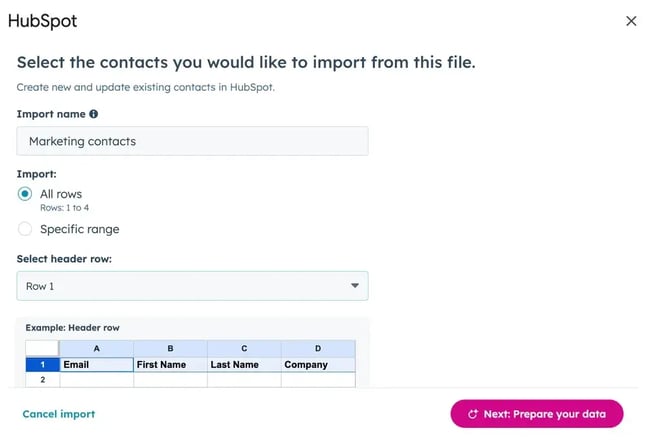
Once connected, click Extensions in the toolbar again and launch the connector. In the pop-up box, set up the import by giving it a name and choosing whether to import all rows or a specific range. Select the header row that contains the column headers — each should correspond to a property in HubSpot.
Step 4: Map your fields
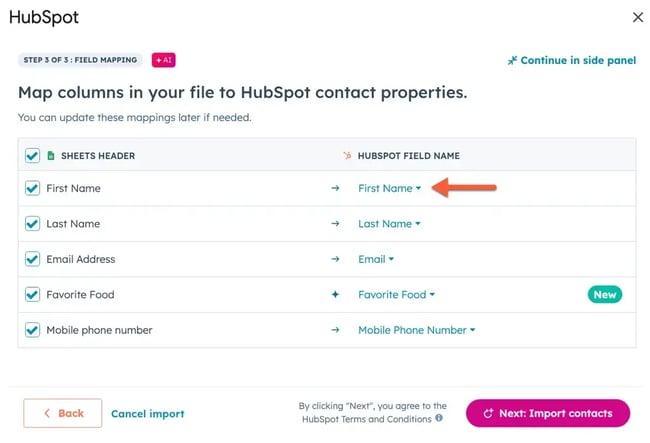
Click Next to prepare the data. The connector will display a table showing how sheet headings will map to HubSpot properties. If a heading matches an existing HubSpot property, it‘ll be selected automatically. If there’s no exact match, will suggest an appropriate property. Users can edit any mapping by clicking the dropdown menu under the HubSpot field name column.
Step 5: Complete the import
Once the mappings look good, click Next to import contacts. After the import completes, teams will be able to access HubSpot data directly in the right panel of their Google Sheet.
Google Sheets Contact Database Template
Teams not ready to commit to a full CRM can use a structured, as an intermediate solution. Templates provide an ideal middle ground for businesses managing their first 25-50 customers.
The Google Sheets database template includes six organized tabs: Organizations, Contacts, Opportunities, Interactions, Dashboard, and Dropdowns. Reps can set it up in about 15 minutes with no technical skills, and it's designed to help users track customer relationships, sales activities, and follow-ups, enabling them to discover which customer data actually matters before investing in CRM software.
The Dashboard tab is particularly useful — it automatically visualizes the sales pipeline, shows the total value of open opportunities, displays the contact count, and provides other essential metrics at a glance. The template works best during an organization’s first 2-6 months of business, with about 1-2 hours of weekly maintenance.
When to Graduate to a Dedicated CRM
Success has a way of breaking spreadsheets. Here's how to recognize when the team has outgrown Google Sheets and smoothly :
- The team manages over 500 active contacts.
- Team members accidentally overwrite each other's data.
- Reps are missing follow-ups because you lack automated reminders.
- Teams need to create complex workarounds to emulate basic CRM features.
The limitations of Google Sheets become clear when comparing core CRM features. The following comparison table shows what organizations gain when transitioning from spreadsheets to dedicated CRM software.
What Teams Gain with a Real CRM
|
Feature |
Google Sheets |
Dedicated CRM |
|
Automatic email tracking |
Manual logging |
Full inbox sync |
|
Contact timeline |
Static entries |
Live activity feed |
|
Task reminders |
Manual checks |
Smart notifications |
|
Duplicate prevention |
Formulas only |
Built-in matching |
|
Mobile access |
Limited editing |
Full functionality |
|
Email templates |
Copy/paste |
One-click sending |
Making a Smooth Transition
Moving from Google Sheets to a dedicated CRM doesn't have to be a headache. With proper preparation, organizations can complete the migration in a few hours with minimal disruption to business.
Organizations can set themselves up for success by preparing their data for migration in advance. Clean the spreadsheet data by removing duplicate entries, standardizing formatting (especially for phone numbers and dates), and filling in any missing required fields. Most CRMs require specific data formats, so reviewing the destination system's requirements beforehand helps avoid import errors.
From there, decide what to migrate. Start by focusing on active contacts, open opportunities, and recent interactions from the past 6-12 months, as teams may not need all of their historical information transferred immediately. Archived or inactive records can remain in Google Sheets as a reference or be imported later if needed.
Additionally, having both systems temporarily provides a safety net during the transition. Using the Google Sheet as a backup for a week or two while the team adjusts to the new CRM helps identify any data gaps before fully committing to the new system. Once the team feels comfortable and all critical data is verified in the CRM, the spreadsheet can be phased out
Provide hands-on training so team members can practice entering data, updating records, and generating reports in the new CRM system, helping them become familiar with the system for a smoother transition.
When spreadsheet limitations start hindering growth, offers the most effortless transition. It imports Google Sheets data directly, includes unlimited contacts, and grows with you — no credit card required.
Frequently Asked Questions About Syncing Contact Data to Google Sheets
Can Google Sheets be used as a contact database?
Yes, Google Sheets can function as a basic contact database for managing customer information, tracking interactions, and organizing sales activities. It‘s particularly effective when teams manage a smaller number of contacts (typically 25-50) and don’t need advanced automation features. Teams can create custom columns for contact details, add dropdown menus for sales stages, and even build simple dashboards to visualize data.
Is Google Sheets a good contact database for small businesses?
Google Sheets works well for very small businesses or startups in their early stages, especially during the first 2-6 months when they’re still figuring out their sales process. It‘s free, accessible from any device, and doesn’t require any technical setup. However, as a business’s contact list grows beyond 50 active customers or a team needs features like automated follow-ups, email tracking, or team collaboration tools, they’ll likely find Google Sheets too limited. Think of it as a learning tool that helps teams understand what customer data matters before investing in dedicated CRM software.
Does Google have a contact database tool?
Google offers Google Contacts as a personal contact management tool, which syncs across Gmail, Calendar, and other Google services. However, it's designed for personal use rather than sales contact management. For business purposes, use Google Sheets to create a custom contact database, or connect Google Sheets to HubSpot CRM using the extension for a more robust solution that combines spreadsheet familiarity with CRM functionality.
Where can I find a free Google Sheets contact database template?
HubSpot offers a that works in both Google Sheets and Excel. The template includes pre-built tabs for Organizations, Contacts, Opportunities, Interactions, and a Dashboard that automatically visualizes sales data. Download it from HubSpot's resource library and customize it to match your specific business needs, including sales stages and contact fields.
How do I track deals and sales stages in Google Sheets?
Most contact database templates, including HubSpot's, include an Opportunities tab that can track individual deals through your sales pipeline. Create dropdown menus with custom sales stages (like “Qualified Lead,” “Proposal Sent,” “Negotiation,” and “Closed Won”), then assign each opportunity to a stage. The Dashboard tab can automatically calculate metrics such as total pipeline value, the number of opportunities at each stage, and conversion rates. Teams will need to manually update these fields as deals progress, which is manageable with 25-50 contacts but becomes time-consuming as you scale.
What are the main limitations of using Google Sheets as a contact database?
The most significant limitations of using Google Sheets are the manual work required and the lack of automation. Teams have to manually update records after every customer interaction, set their own calendar reminders for follow-ups, and can‘t track whether customers opened emails. There’s no automatic lead scoring, no workflow automation, and limited collaboration features compared to dedicated CRM software. Google Sheets can become cumbersome once teams manage more than 50 active contacts — expect to spend 1-2 hours per week on maintenance. Additionally, organizations won't have mobile app functionality, advanced reporting, or the ability to set role-based permissions for team members.
When should I upgrade from Google Sheets to a dedicated CRM?
It‘s time to upgrade when teams manage more than 50 active contacts, spend more than 2 hours per week on manual updates, or need features such as automated follow-up reminders, email tracking, or better team collaboration. Other signs include: missing follow-ups because manual reminders aren’t working, needing to give multiple team members access with different permission levels, or wanting to integrate your contact data with email marketing or other business tools. If teams have been using HubSpot‘s template, they can easily import their data into HubSpot’s free CRM in about five minutes using the Google Sheets connector.
Can I connect Google Sheets to other tools like email or automation platforms?
Yes, it’s possible to connect Google Sheets to various tools, though the process and capabilities vary. The extension lets users sync data between Google Sheets and HubSpot CRM, giving them access to email tracking, automation, and other CRM features while maintaining their spreadsheet. Integration platforms can also be used to connect Google Sheets with email marketing tools, form builders, and other business applications. However, these integrations typically work best as one-way data pushes rather than true two-way syncs, and setting them up requires more technical knowledge than using a native CRM integration.
Start with Google Sheets, scale with a CRM
Google Sheets provides an accessible entry point for businesses beginning to formalize their contact management processes. While spreadsheets work well for teams managing fewer than 50 contacts, growing organizations eventually need the automation, scalability, and collaboration features that dedicated CRM software provides. The transition from Google Sheets to a full CRM marks a natural evolution in business growth, transforming contact data from static records into dynamic customer relationships
Free Growth Strategy Template
Outline your corporate growth plan with the help of this detailed template.
- Sales and Revenue Growth
- Expansion into New Regions
- Growth of Customer Base
- And more!
Download Free
All fields are required.
Form not available
You're all set!
Click this link to access this resource at any time.
Excel