
What’s the best way to find a meeting time that works for everyone? TL;DR — Use (like ) that let attendees choose from your real-time availability. That kills the back-and-forth, handles time zones, and books directly on everyone’s calendars.
How should I handle scheduling for large groups? TL;DR — Use a polling tool such as . Offer 3 or 4 slots, let participants vote, then lock the winner. It’s much faster than an email chain and ensures the maximum number of people can attend.
What’s the fastest way to schedule internal team meetings? TL;DR — Use Google Calendar’s Find a time function to see everyone’s availability in one view. Simply click on a time where everyone is free and send over the invite.
When should I skip the meeting entirely? TL;DR — If you’re pushing a status update, sharing a report, or issuing simple instructions, send an email or a short async video using a provider like instead.
What details make meeting scheduling more effective? TL;DR — Share the objective, an agenda with time boxes, the meeting type (video/phone/in-person), and give recipients at least 48 hours’ notice so people can prepare.
I still remember a time when lining up a slot for a few people to meet took more time than the meeting itself. With lots of work demands, teams spread out across multiple time zones, and wildcards like kids’ school schedules thrown into the mix, it’s easy to see how trying to line up a meeting can be a frustrating experience.
According to , enterprise employees commonly spend 5+ hours per week in meetings, and sellers can spend quite a bit more than that. As someone who coordinates dozens of calls with prospects, clients, and internal teams every week, I’ve learned that scheduling can chew through your day unless you have a clear process and the right tools. Below I’ll offer a few examples of how I do it (and yes, I’m a big fan of HubSpot’s free meeting scheduler).
Table of Contents
- How to Find a Meeting Time That Works for Everyone
- Tips for Finding a Meeting Time That Works for Everyone
- Meetings Tool Comparison
- Finding a Meeting Time With Google Calendar
HubSpot's Free Meeting Scheduler
Schedule meetings faster and forget the back-and-forth emails. Your calendar stays full, and you stay productive.
- Let prospects book a meeting time
- Book more meetings and appointments
- Sync with Google and Office 365 Calendar
- And more!
How to Find a Meeting Time That Works for Everyone
1. Use a meeting scheduling tool.
I schedule 5-10 external meetings a week across time zones, so automation is non-negotiable. A good scheduler cuts my coordination time from about 10-20 minutes per meeting to no time at all, particularly when it handles time-zone math and travel time buffers for in-person meetings.
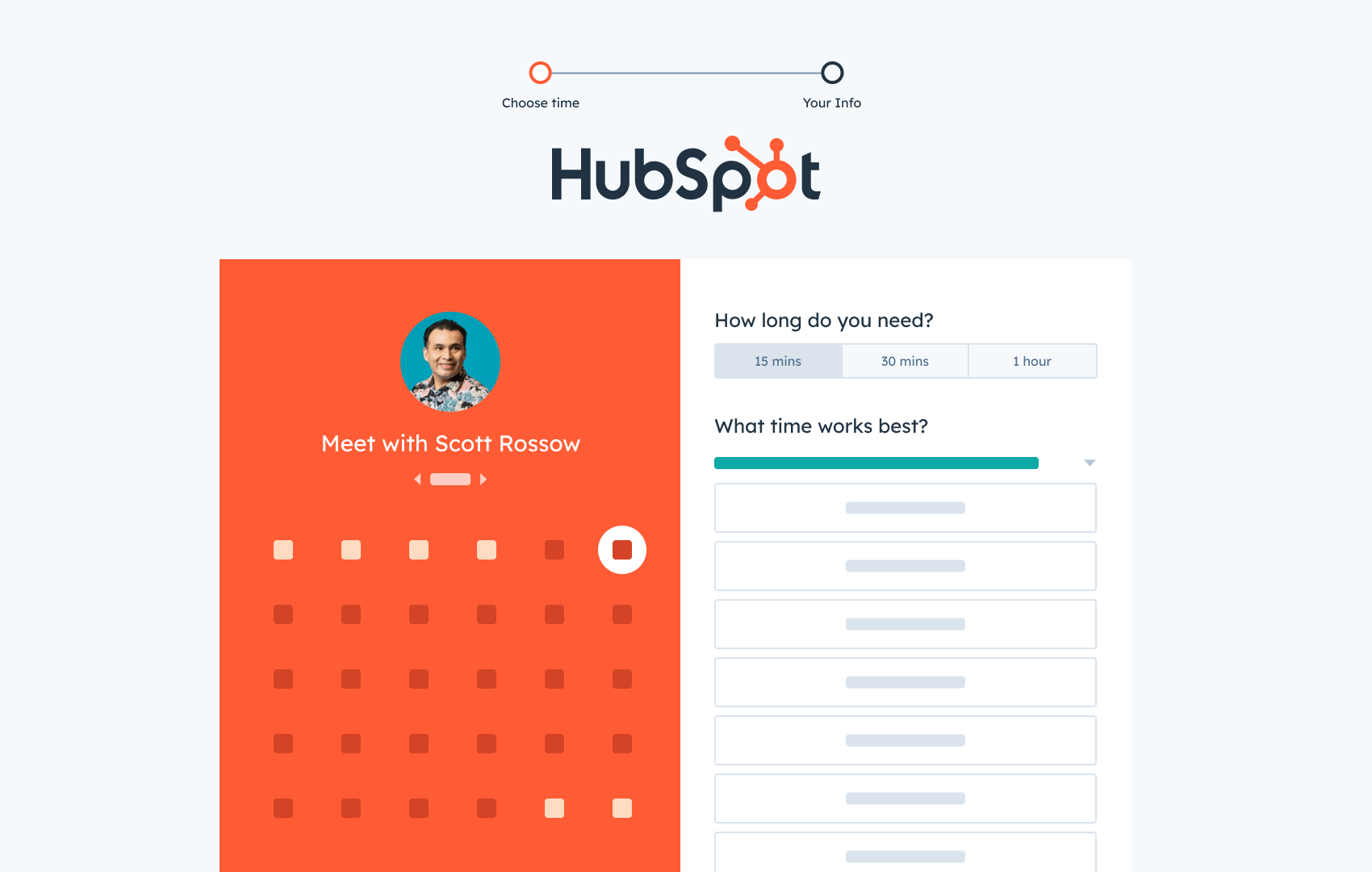
I have used HubSpot’s for years. It's ideal for scheduling meetings in seconds if you’re using HubSpot’s CRM or a Google or Office 365 calendar. You can also create a meeting link for each use case (discovery, demo, customer check-in, etc.). I add custom questions to these different types to collect the right context, which trims follow-ups and makes calls sharper.
My flow with HubSpot’s free Meetings tool:
- Set availability once (e.g., 9-5 ET; no Fridays).
- Create meeting types (30-min intro, 60-min deep dive).
- Share .
- The other party picks a time; we both get the calendar event.
- HubSpot logs the activity to the CRM so I don’t forget to track the meeting.
Pro tip: I use buffers on sales calls so I have enough prep time, but I keep internal syncs back-to-back.
Why this matters now: Meeting volume is still high even as many organizations try to curb it, so every scheduling minute you save compounds.
2. Offer multiple options via a (tight) email thread.
Some executives prefer the white-glove approach, and some slower-moving industries like finance aren’t up to speed on new tools. Regardless of the cause, when I must schedule by email, I follow the same tried-and-true template: I send exactly three options over the next five business days, include time zones, and set a reply-by.
Template
Hi [Name], I’d love to talk about [topic]. Would any of these work?
- Tue, Jan 23 – 10:00 a.m. ET
- Wed, Jan 24 – 2:00 p.m. ET
- Thu, Jan 25 – 11:00 a.m. ET
If none of these fit your availability, I’m happy to share a booking link or add more options. If possible, let me know by EOD Monday. Thanks!
What to avoid: “When are you free?” and lists longer than three options. Both double the email volume.
Pro tip: Add a reminder to follow up if you don’t hear back in 24-48 hours. Once more time than that has passed, it’s going to be harder to salvage the meeting.
3. Leverage a meeting poll.
Once you have more than 3-4 attendees, it’s probably time to utilize a poll. I’ll propose 3-6 availability windows, set a 24-48-hour voting deadline, and tentatively hold those windows on my calendar so the winner doesn’t end up with a conflict by the time the votes are in. is my default here, but alternatives include and the open source option .
Best for: Cross-functional sessions, rescheduling recurring meetings, or vendor/customer calls with many time zones.
4. Find common free time in Google Calendar.
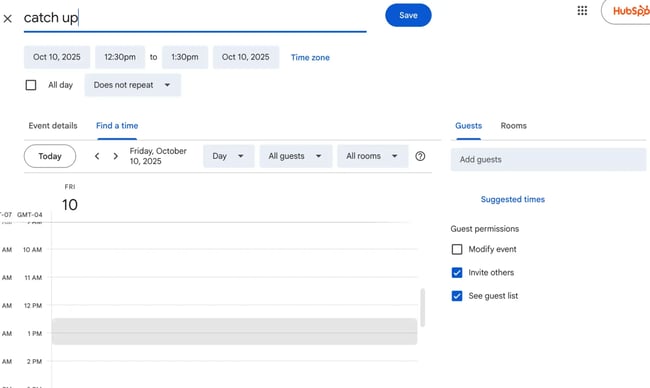
For internal meetings, Google Calendar’s “Find a time view” is the fastest path. I prefer the Week view to spot patterns (focus blocks, school pickups and dropoffs, and other recurring conflicts). Always double-check time-zone badges and regional holidays before you hit Save.
What I love:
- Availability in a single view
- Automatic time zone management
- Error-free (provided everyone’s calendar is up to date!)
5. Record an async video when schedules won’t line up.
If I just can’t make the schedules line up, I’ll record a 5-10-minute walkthrough with timestamps, then ask for questions by a set deadline. Engagement drops on longer videos, so I keep it as brief as possible and start with the punchline.
After being forced to send those initial instead of having meetings a few times, you might find that a lot of meetings that felt essential could actually happen this way by default.
Pro tip: Modern tools transcribe and summarize the recording for you, so recipients get a clear analysis with tasks and action plans.
6. Book a recurring meeting time.
Recurring meetings are a great “set and forget” option, but they should always be used responsibly. If too many people set up recurring meetings on your calendar, you might find a quarter or even half of your work week is eaten up before Monday has even started.
I’ll set weekly meetings for standups and 1:1 reviews, project check-ins happen every other week, and broader planning sessions and reviews occur quarterly. I include an agenda template so everyone knows what to expect, and I’ll review what I’ve accomplished in recurring meetings quarterly with participants to decide if we need to nix them and get that time back for other things.
Pro tip: Schedule recurring meetings for 25 or 50 minutes instead of 30 or 60. This built-in buffer prevents those annoying back-to-back meetings, and it gives everyone time to take quick follow-up actions that might otherwise be pushed to the end of the day when they’re less likely to happen.
Tips for Finding a Meeting Time That Works for Everyone
1. Provide meeting details.
I try to include a one-line objective with every invite and any clear action items that should be decided or executed during the meeting. This way, people arrive oriented, and decisions are made more efficiently.
Template I use in the description:
- Objective: Decide on Q1 launch timeline for Feature X.
- Success looks like: Final timeline + owners assigned.
- Pre-reads: Roadmap v2.3 (5 min).
- Roles: DRI – Alex; Timekeeper – Sam; Notes – Jordan.
Pro tip: Keep a note of reusable “meeting objective” snippets you can paste into invites.
Best practice: If the meeting objective is unclear or there’s too much you’re trying to accomplish, hold off on the meeting until you have a more refined goal.
HubSpot's Free Meeting Scheduler
Schedule meetings faster and forget the back-and-forth emails. Your calendar stays full, and you stay productive.
- Let prospects book a meeting time
- Book more meetings and appointments
- Sync with Google and Office 365 Calendar
- And more!
2. Prepare an agenda.
An agenda shows respect for everyone’s time and helps get all the meeting participants on the same page quickly. I time-box, and on a 30-minute call, I might budget 5 minutes for updates, 20 for discussion, and 5 for next steps. (Teams that do this report clearer action items and less “could’ve been an email” sentiment, according to .)
Agendas are an excellent tool for ensuring your meetings are absolutely necessary. If you can’t outline an ideal agenda, you might not have the clarity needed about what you’re trying to accomplish. They also keep the team on track when some participants might be prone to going off on tangents.
3. Communicate value.
Before I send an invite, I ask myself what attendees are going to get out of the meeting. If I can’t write a concrete Success looks like line as detailed in the template above, I’m probably going to communicate via email instead of taking up everyone’s time.
Pro tip: Meetings can be essential for assembling stakeholders and making important decisions, but make sure to verbally confirm the decision and get everyone in agreement. I can’t count the number of times I thought something was decided in a meeting only to have it come back up later on.
4. Determine the meeting type.
Live discussion isn’t always the answer. I use:
- Email/Doc for status updates or FYIs.
- Async video for walkthroughs or demos.
- Live calls for decisions, brainstorms, or the most important topics like hirings and firings.
Calls are powerful, but they’re also expensive. When you get five people together in a meeting, all those hours add up quickly and place a large demand on resources. In my opinion, the most important part of setting up a meeting is making sure that it’s the most effective way to accomplish the goal at hand.
Pro tip: For in-person meetings, I always include building, floor, and room. For video, I include the link and a backup dial-in.
5. Consider all time zones.
Hybrid work means more companies are global, and there are more chances to accidentally book someone at 11 p.m. I check my recipients’ local time in tools like Slack or Asana, and when in doubt, drop them a meeting link so they can choose an ideal time.
Culture tip: Many companies have a policy of avoiding internal meetings on Fridays, so avoid scheduling something then unless it’s customer-facing or particularly urgent.
6. Schedule the meeting in advance.
Give your recipient some advance notice before booking with them. My rules of thumb:
? Regular team meetings: at least 1 week's notice
? Strategy/quarterly planning: 2-3 weeks
? Client presentations: 3-5 business days
? Quick updates: 24 hours when possible
Scheduling in advance isn’t just a show of respect. Sending the invite with a draft agenda at least 48 hours ahead of time will generally ensure the participants are more prepared and ready to contribute, producing a more productive outcome for everyone involved.
7. Block “no-meeting” time.
You know yourself best. I need to start the day with relatively uninterrupted time, which is why I generally protect 9:00–11:00 a.m. for deep work. If you have regular errands to run or commitments like picking up the kids from school or lunch with a colleague or mentor, block those on your calendar to ensure no-one can throw a wrench in your plans. Some teams like HubSpot adopt to reduce fatigue and context switching.
8. Don’t schedule a meeting when an email will do.
Status updates, report distribution, straightforward instructions, minor announcements — all are prime candidates for email or an async Loom video. Your team will thank you.
Meetings Tool Comparison
|
Meetings Tool |
HubSpot Meetings Tool |
Doodle |
NeedToMeet |
|
Key Features |
Calendar integration with Google Calendar and Office 365, group scheduling capabilities, round-robin meeting distribution, direct CRM integration, automated booking confirmation emails, custom meeting duration options, meeting buffer time settings |
Polling interface for finding meeting times, calendar integration for availability checks, customizable booking pages, built-in reminder system, meeting limits and time blocking capabilities |
Simple polling without registration requirements, custom URLs for each meeting, consolidated comment viewing, real-time email notifications, calendar integration and recurring meetings in premium tiers |
|
Pricing |
Free |
Free for individuals, $14.95/month per user (Pro), $19.95/month per user (Team) |
Free (Standard), $12/year/user (Advanced), $19/year/user (Premium) |
|
Free Trial |
Yes (Free version available) |
Yes (Free version available) |
Yes (Free version available) |

Tools to Find a Time to Meet
- HubSpot Meetings Tool
- Doodle
- Notta (formerly Airgram)
- SurveyMonkey
- Calendly
After testing dozens of scheduling tools over the years, here are the ones I consistently recommend to my team and clients. Each has unique strengths for different scheduling scenarios.
1.
Price: Free
connects with your calendar to automate meeting scheduling. Sales teams can create booking links for prospects, manage team availability, and track all scheduling activity in the CRM.
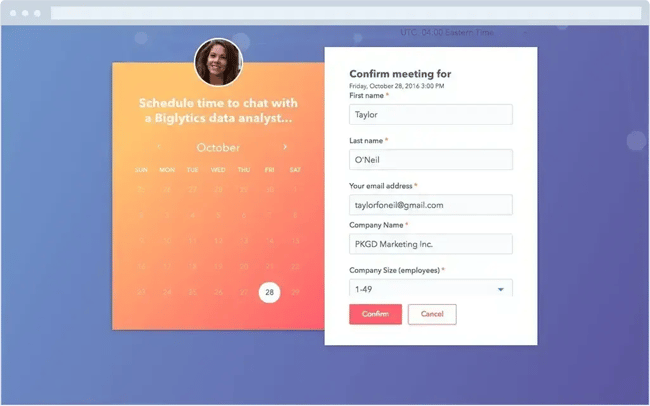
The meetings tool integrates directly with the to manage contact details and see who has booked a meeting with you.
What I love about it:
- Calendar Integrations syncs in real-time with Google Calendar and Office 365.
- Group scheduling capabilities for team coordination.
- Round-robin meeting distribution for sales teams.
- Direct integration with HubSpot CRM.
- Automated booking confirmation emails.
- Custom meeting duration options.
- Meeting buffer time settings.
Best for: Sales teams who need to coordinate multiple calendars and want CRM integration. I use this daily for client meetings and find the automatic availability sync particularly reliable.
Pro tip: Set up different meeting types with custom questions to gather information before the meeting. I've found this reduces follow-up emails by about 40%.
2.
Price: Free for individuals, $14.95/month per user (Pro), $19.95/month per user (Team)
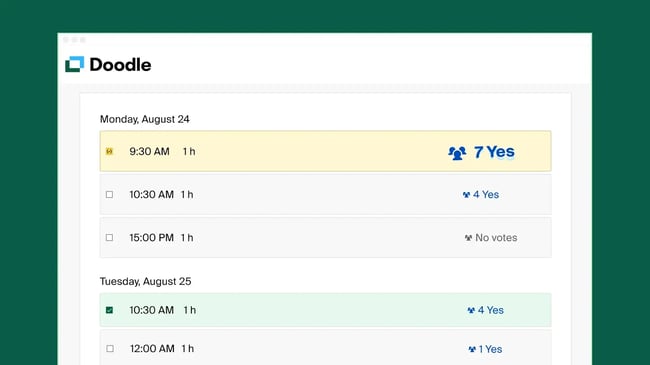
Doodle is a polling tool designed specifically for finding meeting times. The host of the meeting suggests possible times for the meetings and sends the poll to the meeting participants. From there, they'll enter their availability, and the meeting host selects the best meeting date and time based on the responses.
Doodle also has booking pages that allow you to send your availability to clients and have them book time on your calendar based on your shared availability. This feature also allows you to limit the amount of meetings that people can add to your calendar, block off times you don't want booked, and send out meeting reminders to prevent no-shows.
What I love about it:
- Simple, intuitive polling interface.
- Calendar integration for automatic availability checks.
- Customizable booking pages.
- Built-in reminder system.
Doodle has become my go-to tool for coordinating large group meetings. The polling feature is straightforward. I suggest possible times, participants indicate their availability, and I can quickly spot the best time slot for everyone.
Best for: Team meetings and events with multiple participants. I primarily use it for monthly all-hands meetings with 20+ attendees across departments.
Pro tip: I've found that limiting polls to 3-4 time options gets faster responses than offering too many choices. Plus, the booking page feature helps me control my calendar by setting buffer times between meetings.
3.
Price: Free plan available; Pro plans start at $14.99/month
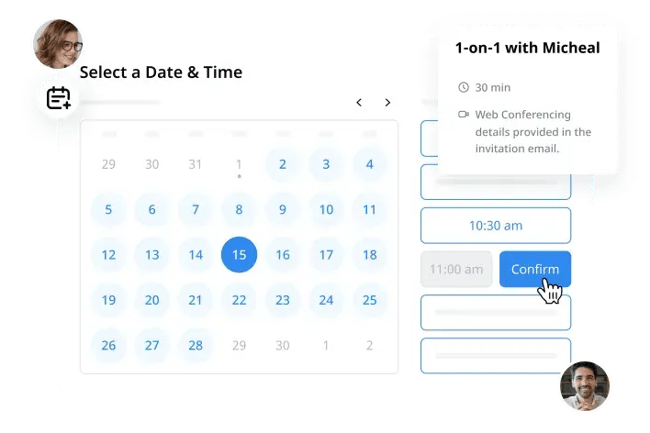
Here's something exciting: Airgram and Notta merged in late 2024 to solve a common frustration — switching between different apps to schedule, record, and document meetings.
The result? A single platform that handles everything from finding the perfect meeting time to creating detailed, AI-powered summaries of your conversations.
What makes this tool particularly interesting is how it learns from your meeting habits. As you use it, the AI gets better at suggesting meeting times, identifying key discussion points, and helping you stay organized.
For teams drowning in meeting coordination and documentation, this combination of smart scheduling and automatic note-taking is a game-changer.
What I love about it:
- Advanced AI transcription and summarization.
- Calendar integration with Google and Outlook.
- Meeting scheduling and recording in one platform.
- Real-time collaborative note-taking.
Best for: Teams who want an all-in-one solution for scheduling, recording, and documenting meetings. Particularly valuable for remote teams who need to maintain detailed meeting records.
Pro tip: The AI-powered meeting summaries can help determine if a follow-up meeting is necessary, potentially reducing unnecessary scheduling.
HubSpot's Free Meeting Scheduler
Schedule meetings faster and forget the back-and-forth emails. Your calendar stays full, and you stay productive.
- Let prospects book a meeting time
- Book more meetings and appointments
- Sync with Google and Office 365 Calendar
- And more!
4.
Price: $30/user/month (Team Advantage), $92/user/month (Team Premier), Contact for details (Enterprise)
With SurveyMonkey, you can choose a meeting date and time, create a poll, and send the link to the poll to meeting participants via email. The poll can also be embedded on a website or Facebook page to reach even more people. If they don't respond to the poll within a certain timeframe, SurveyMonkey will send a reminder email.
SurveyMonkey can help you plan out team schedules, too. For instance, if you manage a large team with multiple shifts, creating a scheduling poll can help you view everyone's availability all in one place.

What I love about it:
- Versatile polling capabilities beyond just scheduling.
- Website and social media poll embedding.
- Automated reminder system.
- Advanced analytics for response tracking.
Best for: Large organizations managing complex schedules, especially teams with shift workers or multiple departments needing coordination.
Pro tip: The ability to embed polls on internal websites or intranets makes it particularly effective for company-wide event planning or training session scheduling.
5.
Price: Free (Basic), $12/seat/month (Standard), $20/seat/month (Teams), and Enterprise starts at $15K/year
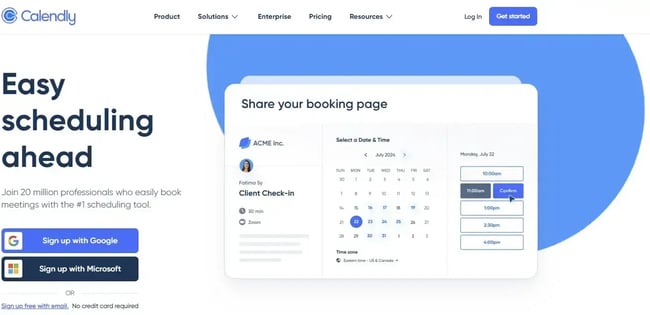
Calendly is a meeting scheduling tool that connects to your calendar. It even lets you set your availability and send a meeting link to contacts. Meeting invitees can book a meeting at a time that's convenient for them and that time is automatically scheduled on your calendar.
Calendly's meeting poll feature helps you find the best time for team meetings. Plus, the workflows feature allows you to automate routine communications, like event reminders and follow-up meetings.
What I love about it:
- Clean, professional booking interface.
- Automated workflows for reminders and follow-ups.
- Multiple meeting type configurations.
- Robust calendar integration options.
I use Calendly to manage my freelance client meetings, and it's been a game-changer for professional scheduling. The automated reminders and follow-ups keep everything organized without the back-and-forth emails.
Best for: Freelancers, consultants, and small businesses who want to present a professional scheduling experience to clients.
Pro tip: Create different meeting types for initial consultations versus project check-ins, each with its own duration and buffer times, to better manage your freelance workflow.
Finding a Meeting Time With Google Calendar
Want to meet with one person or multiple people? You can find a time that works for everyone using Google Calendar. Here’s how.
1. Navigate to Google Calendar.
Start out by logging into your account.
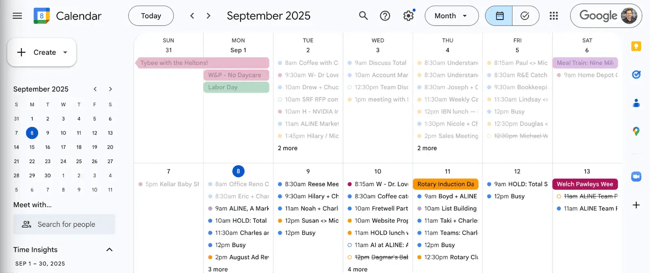
Pro tip: Make sure you‘re using the Google Workspace account associated with your organization to see your colleagues’ calendars.
2. Create a new event or edit an existing event.
To create a new event, click Create and a pop-up will appear. Then click the More options button to add your meeting details.
To edit an existing event, click on the event you want to update, and select the pencil icon to edit it.
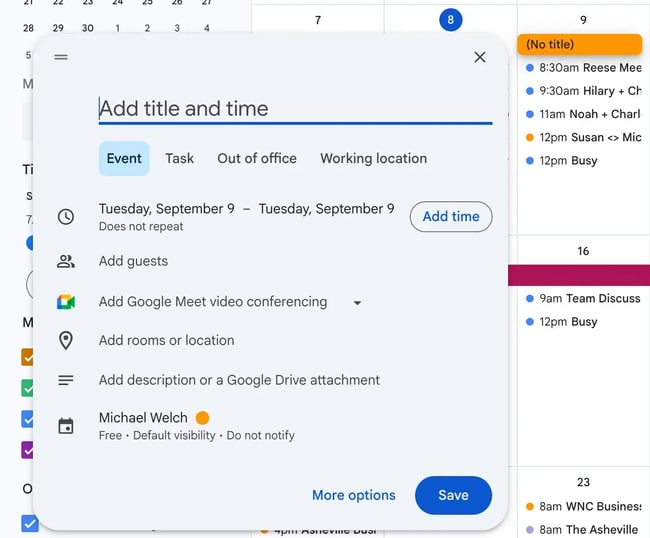
Pro tip: Use keyboard shortcuts (press Shift + ? to see them all) to speed up your calendar management.
3. Add guests to the invite.
In the Guests field, enter email addresses for all participants. Google Calendar will automatically check their availability as you add them.
Best practice: Add required attendees first, then optional ones. This helps prioritize scheduling around key participants' availability.
4. Click the “Find a Time” tab.
Select the Find a Time tab at the top of your event details. This view shows everyone's availability in a convenient grid format.
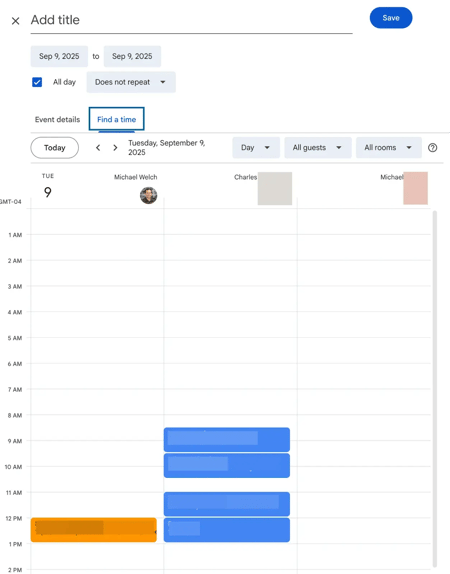
Key features to use:
- Toggle between Day and Week views for different planning perspectives.
- Look for white spaces that indicate mutual availability.
- Check the time zone indicator for each participant.
- Use the scheduling grid to visualize conflicts.
5. Select a time.
Click on an available time slot in the grid to select it. The time will automatically populate in your event details. Click Save to send the invitation to all participants.
Pro tip: Before finalizing, check for adjacent meetings and consider adding buffer time to prevent back-to-back scheduling.
Click, Pick, and Meet
If you’re wondering how to find a meeting time that works without burning hours every week, here’s my playbook: default to a scheduler; switch to a poll when headcount climbs; use Google’s Find a time for internal overlaps; and punt to email or an async video when live discussion won’t add value.
I’ve found that a clear, stated objective, a simple agenda, and a little empathy for time zones go a long way. Remember, the goal isn’t just getting something on the books. Strive to set up conversations that actually move work forward.
Editor's note: This post was originally published in April 2020 and has been updated for comprehensiveness.
HubSpot's Free Meeting Scheduler
Schedule meetings faster and forget the back-and-forth emails. Your calendar stays full, and you stay productive.
- Let prospects book a meeting time
- Book more meetings and appointments
- Sync with Google and Office 365 Calendar
- And more!